CMS Sheets
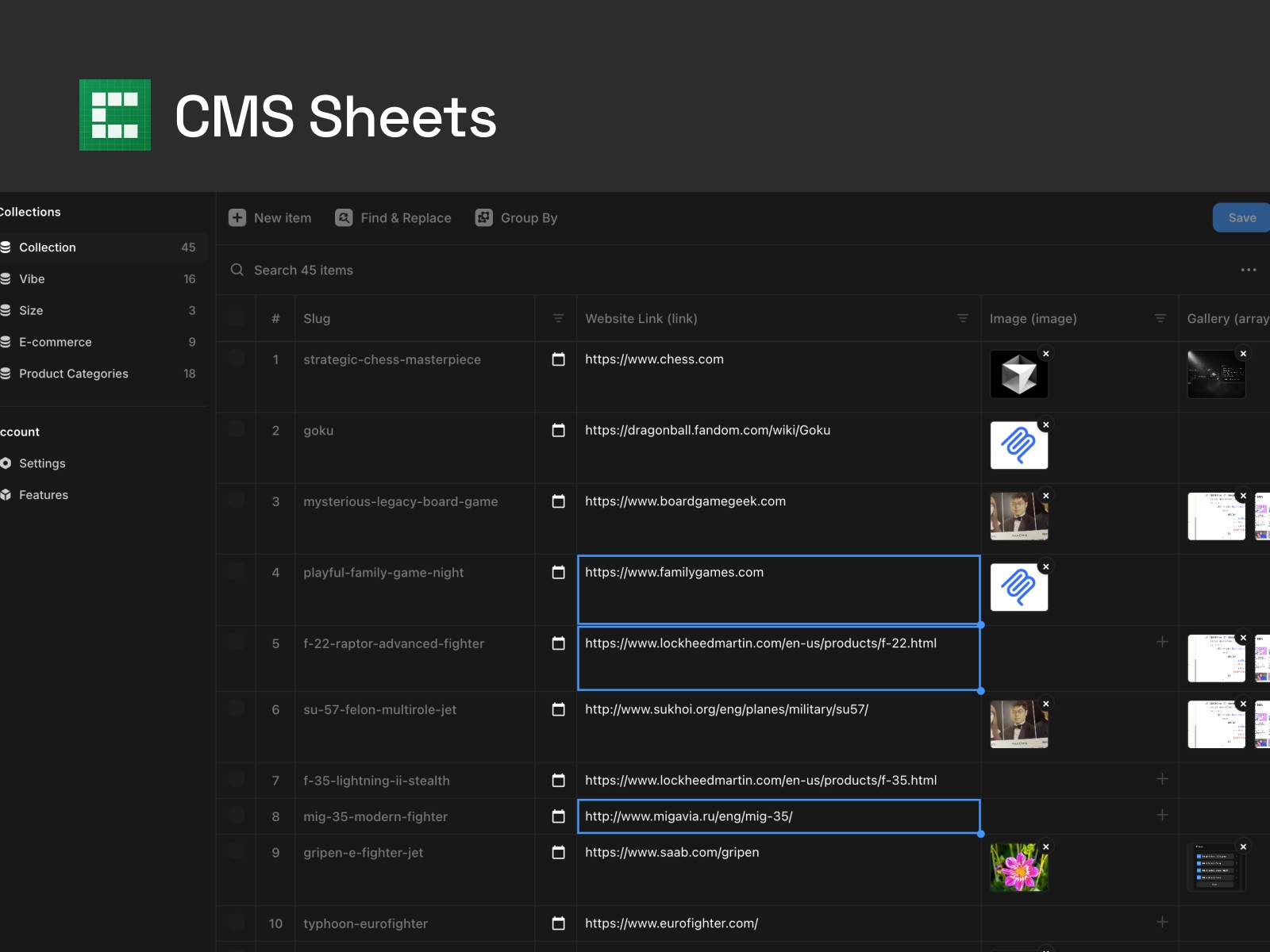
Turn your CMS collections into a spreadsheet. Edit data inline with smart inputs, use multi-cell selection for bulk edits, and search, filter, and group your data. Includes undo/redo, keyboard shortcuts, and remembers your preferences.


Editing Features
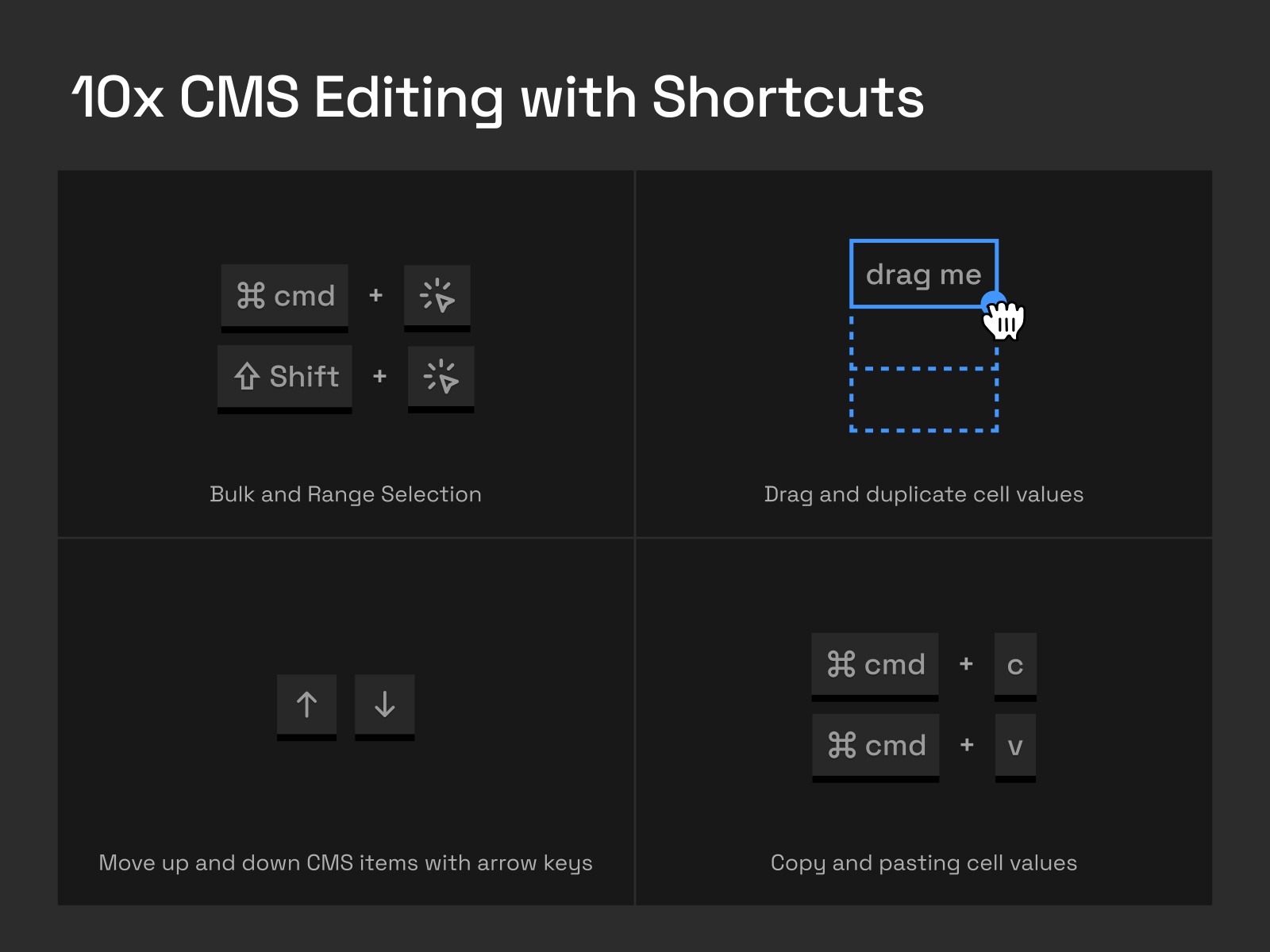
Multi-Cell Editing: Hold ⌘ (Mac) or Ctrl (Windows) and click multiple cells in the same column to edit them all at once.
Range Selection: Hold Shift and click to select a range of cells in the same column. Click a cell to set the anchor, then Shift+click another cell to select all cells between them.
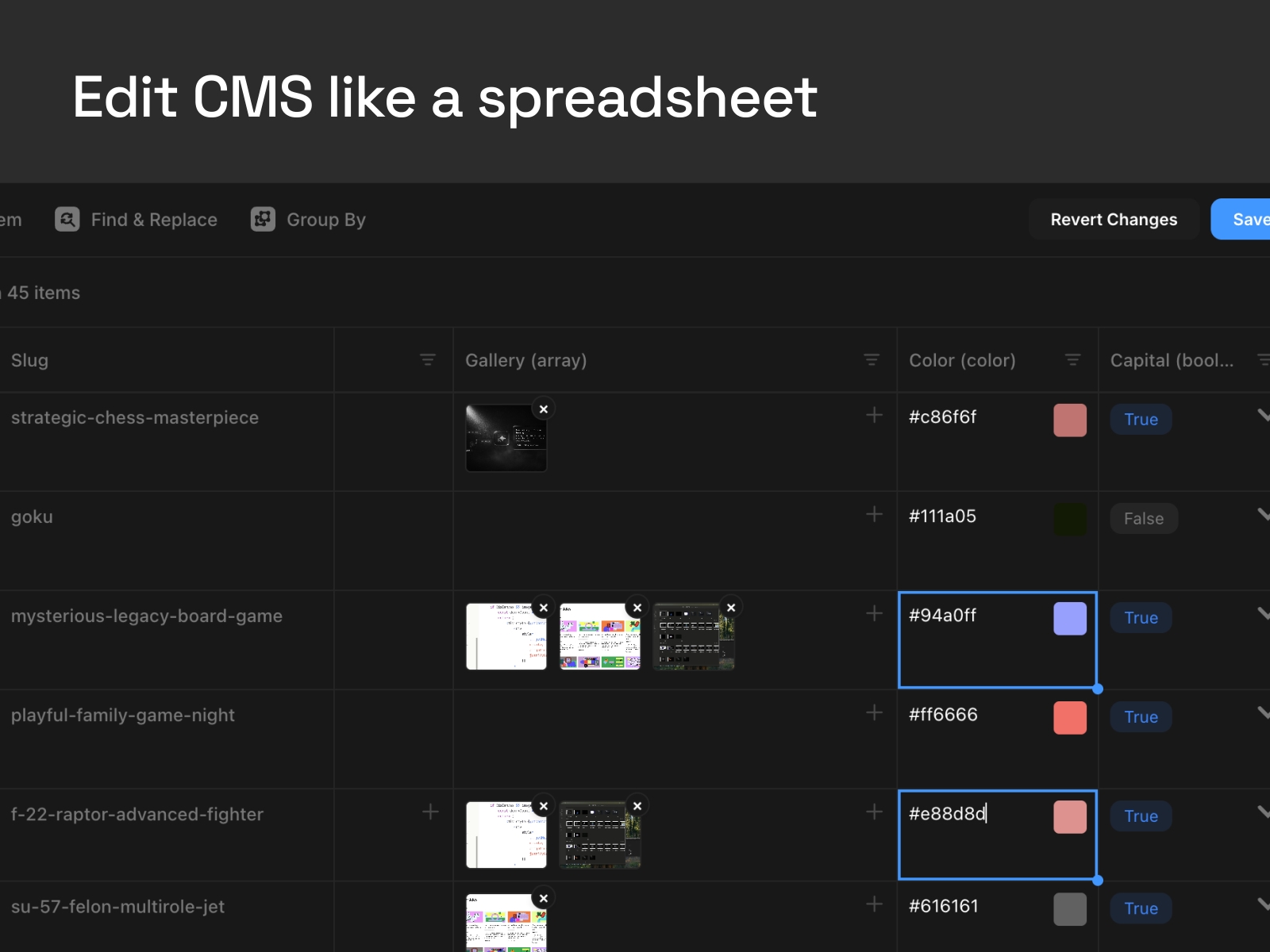
Inline Editing: Click any cell to edit directly in the table with appropriate input types for each field (text, number, date picker, color picker, dropdowns, etc.).
Undo/Redo: Full undo/redo support with up to 50 history states. Use ⌘+Z / ⌘+Y to undo or redo changes.
Change Tracking: Save button shows when you have unsaved changes, making it easy to track your edits.
Sticky Headers: Column headers stay visible while scrolling through large datasets.
Resizable Window: Resize the plugin window to fit your workflow.
Bulk Operations: Select multiple rows to move or delete them together.
Create New Items: Add new items to your collection with default values automatically set for all fields.
Image & File Upload: Click on image or file fields to upload directly from your computer. Supports single images, files, and gallery (multiple images).
Search & Filter
Search: Search across all fields in your collection. Search results are highlighted and work with filters and grouping.
Find & Replace: Find and replace text across multiple cells. Supports exact matching and shows match count.
Column Filters: Filter by any column with field-specific filter types:
String/Link: Contains, Equals, Not equals, Starts with, Ends with, Is empty, Has data
Number: Equals, Greater than, Less than, Between, Is empty, Has data
Date: Exact date, Before, After, Between, Is empty, Has data
Boolean: Is true, Is false
Color/Enum/Reference: Selected values, Is empty, Has data
Image/File/Gallery: All, Is set, Is not set
Group By: Group items by any field to organize and view your data in a structured way.
Keyboard Shortcuts
Arrow Keys (↑/↓): When rows are selected, use arrow keys to move items up or down in the list.
⌘/Ctrl + Click: Multi-select cells in the same column for batch editing.
Shift + Click: Select a range of cells in the same column. Click a cell to set the anchor, then Shift+click another cell to select all cells between them.
⌘/Ctrl + Z: Undo your last action.
⌘/Ctrl + Y or ⌘/Ctrl + Shift + Z: Redo your last undone action.
⌘/Ctrl + C: Copy selected cell values.
⌘/Ctrl + V: Paste values into selected cells.
Delete / Backspace: Clear values from selected cells.
Column Management
Manage Columns: Show or hide columns to customize your view. Access via the three-dot menu in the search bar.
Resizable Columns: Drag column edges to resize width to fit your content perfectly.
Workspace Memory
Your workspace is customized just for you. CMS Sheets remembers your preferences for each collection, so you don't have to repeat the same setup every time you open the plugin.
Column Sizes: Your custom column widths are saved and restored automatically.
Hidden Columns: Columns you've hidden stay hidden until you choose to show them again.
Grouping: Your Group By selection is remembered for each collection.
Filters: Active column filters are preserved, so your filtered view is ready when you return.
Each collection has its own saved preferences, so switching between collections gives you a personalized experience tailored to how you work with each one.
Supported Field Types
String
Number
Boolean
Color
Date
Link
Enum
Image
Formatted Text
Collection Reference
Multi Collection Reference
File
Gallery (Array)
Each field type has appropriate input controls: text areas for strings, date pickers for dates, color pickers for colors, dropdowns for enums and references, and upload buttons for images, files, and galleries.